Model Inference Services (MaaS)
Overview
Inference as a Service provides a complete set of tools for using pretrained models to make real-time predictions. Users can browse models, select one that fits their needs, and deploy it seamlessly to production.
By enabling users to run predictions on their data with pretrained models, inference services simplify machine learning deployment and scaling. This category includes:
- Playground: A user-friendly visual interface for trying pretrained models without writing code, suitable for non-developers and AI enthusiasts.
- Model Market: A curated collection of pretrained and public-domain models for immediate selection and hosted deployment.
- Model Service: Deploy public or private models as production endpoints that provide real-time inference through APIs.
- Serverless Endpoints: OpenAI-compatible inference APIs with support for SDKs in multiple languages.
Playground
Features
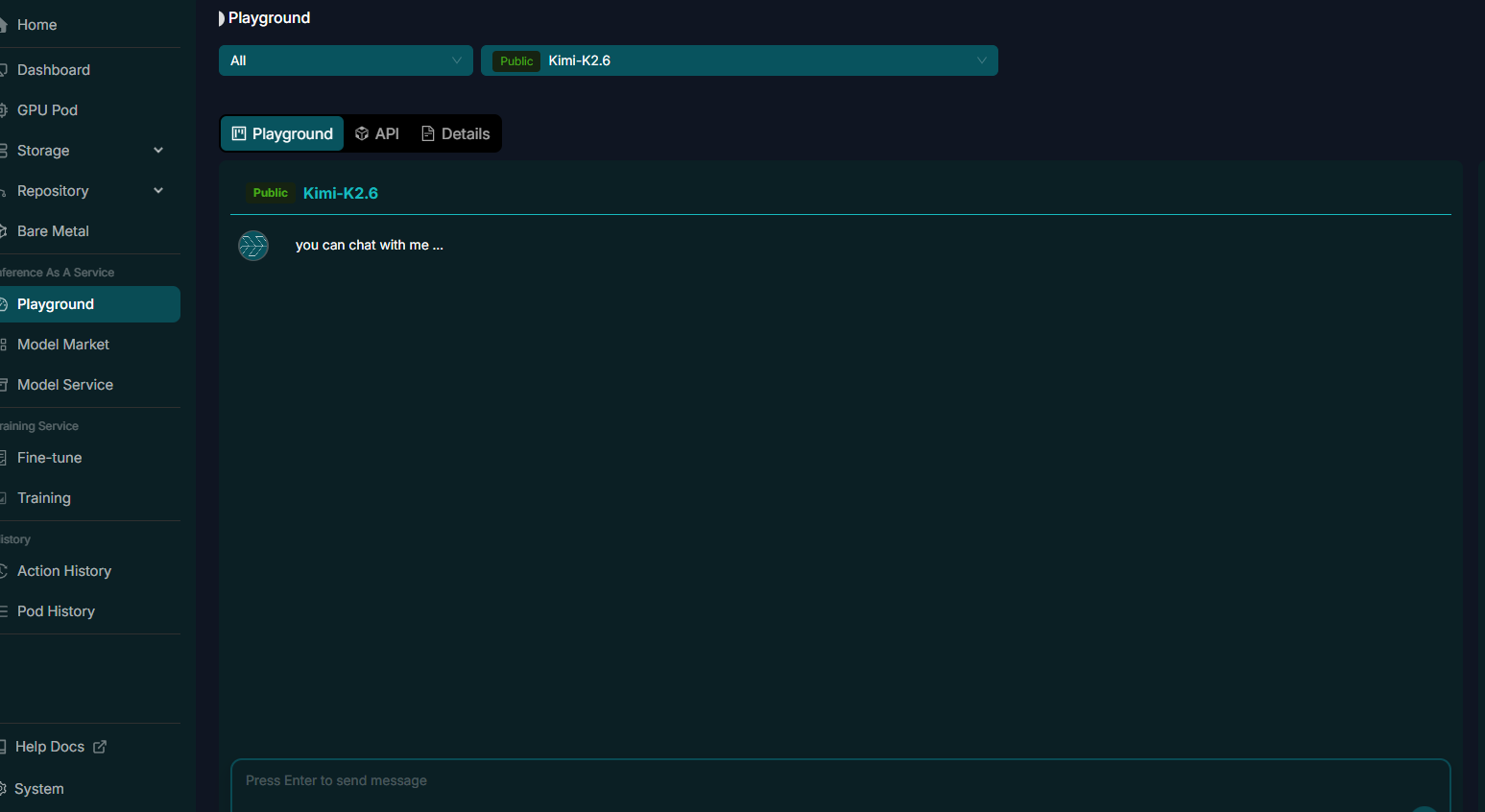
Playground is an interactive environment for experimenting with pretrained models available on the platform. It provides a sandbox for testing models with your own data. You can:
- Interactively compare how different models perform on your data.
- Adjust model parameters in real time through the interface.
- Get started without coding, making it accessible to non-developers and AI enthusiasts.
Usage Steps
| Step | Instructions |
|---|---|
| 1. Open Playground | After signing in, select Playground in the left navigation. |
| 2. Select a model | Choose from the available models. Filter by type or use the search bar to find a specific model. |
| 3. Configure model parameters | Adjust the parameters before deployment, as described below. |
| 4. Enter a prompt | In the input box at the bottom of the page, enter the question or prompt you want the model to answer. |
| 5. Deploy and run | Click Go to deploy. The model processes the input and displays the result. |
| 6. Review the response | Inspect the response in the output area and evaluate whether it meets your expectations. |
| Parameter | Description |
|---|---|
| Temperature | Controls the randomness of model output. |
| Max Tokens | Sets the maximum number of tokens the model can generate. |
| Top P | Controls the diversity of generated output. |
Tips
- Try different types of prompts to observe how the model responds.
- Adjust Temperature, Max Tokens, and Top P to fine-tune the output.
- Use search to quickly find the model you need.
Model Market
Features
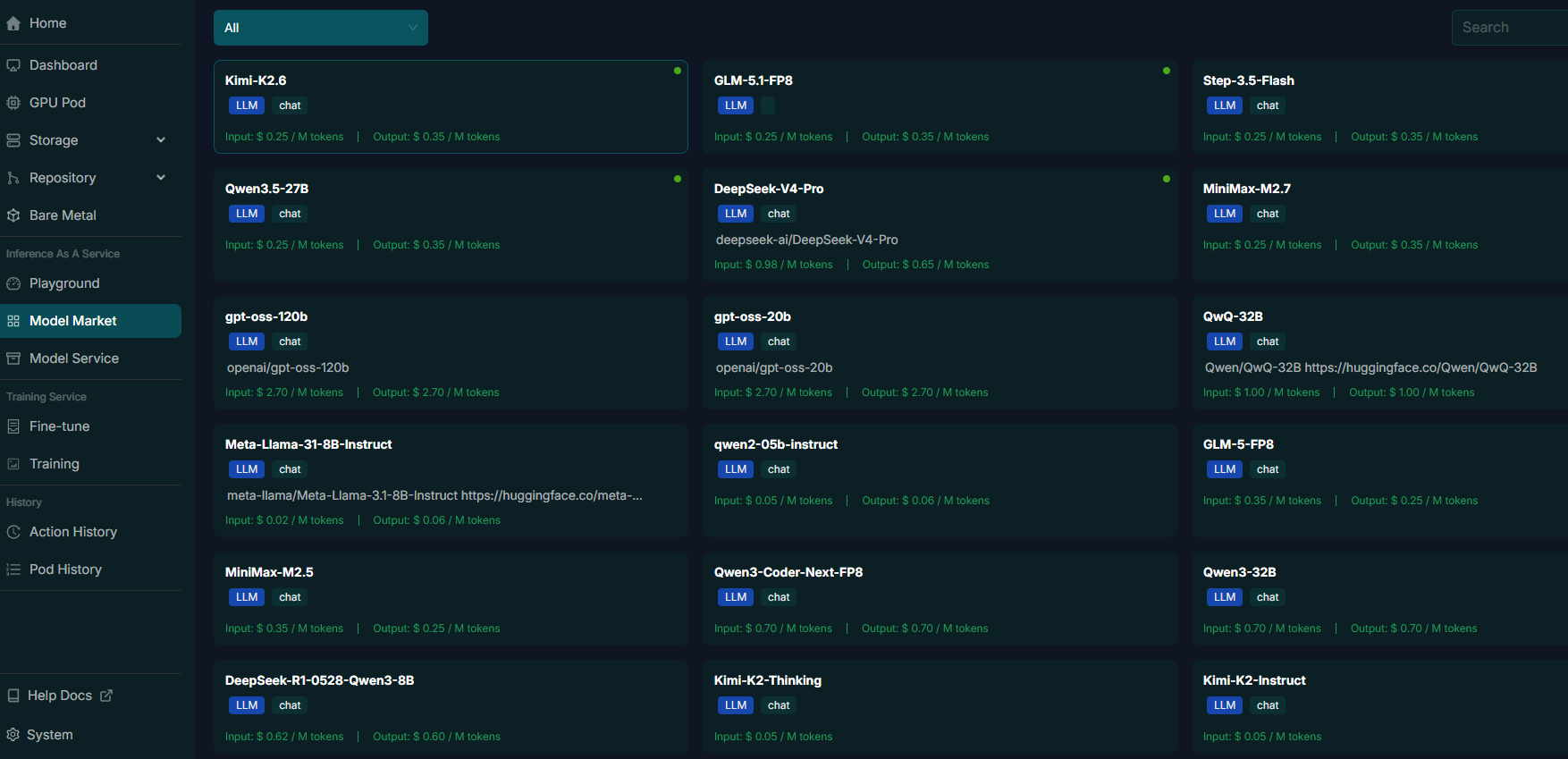
Model Market is the platform's curated collection of pretrained large language models (LLMs). Users can select models for development, training, tuning, and inference deployment. The market supports filtering by application area, such as text, images, natural language processing, and computer vision, as well as by framework.
Usage Steps
| Step | Instructions |
|---|---|
| 1. Browse Model Market | After signing in, open Model Market to view available models. Use search to quickly find relevant models. |
| 2. Select a model | Filter by application area or framework. Consider performance and compatibility with your data and infrastructure. |
| 3. Deploy a model | Select a model and click deploy to create an inference service. Check deployment and resource requirements first. |
| 4. Use model actions | After deployment, you can view API documentation, fine-tune or evaluate the model, and try it online. Use the API documentation to integrate the model into your application. |
Troubleshooting
| Issue | Solution |
|---|---|
| Authentication Error | Check that the API Key is correct and valid. |
| Request Timeout | Check network connectivity and latency, then retry. |
| Unexpected Response Format | Check that the model name and request payload are correct. |
Model Service
Features
Model Service lets you deploy public or private models as production endpoints. You can:
- Expose models through APIs for real-time inference.
- Scale inference using GPU-backed infrastructure to meet demand.
- Monitor performance and usage metrics to keep services reliable and efficient.
Deploy a Model Service
| Step | Instructions |
|---|---|
| 1. Open Model Service | Sign in and open Model Service. |
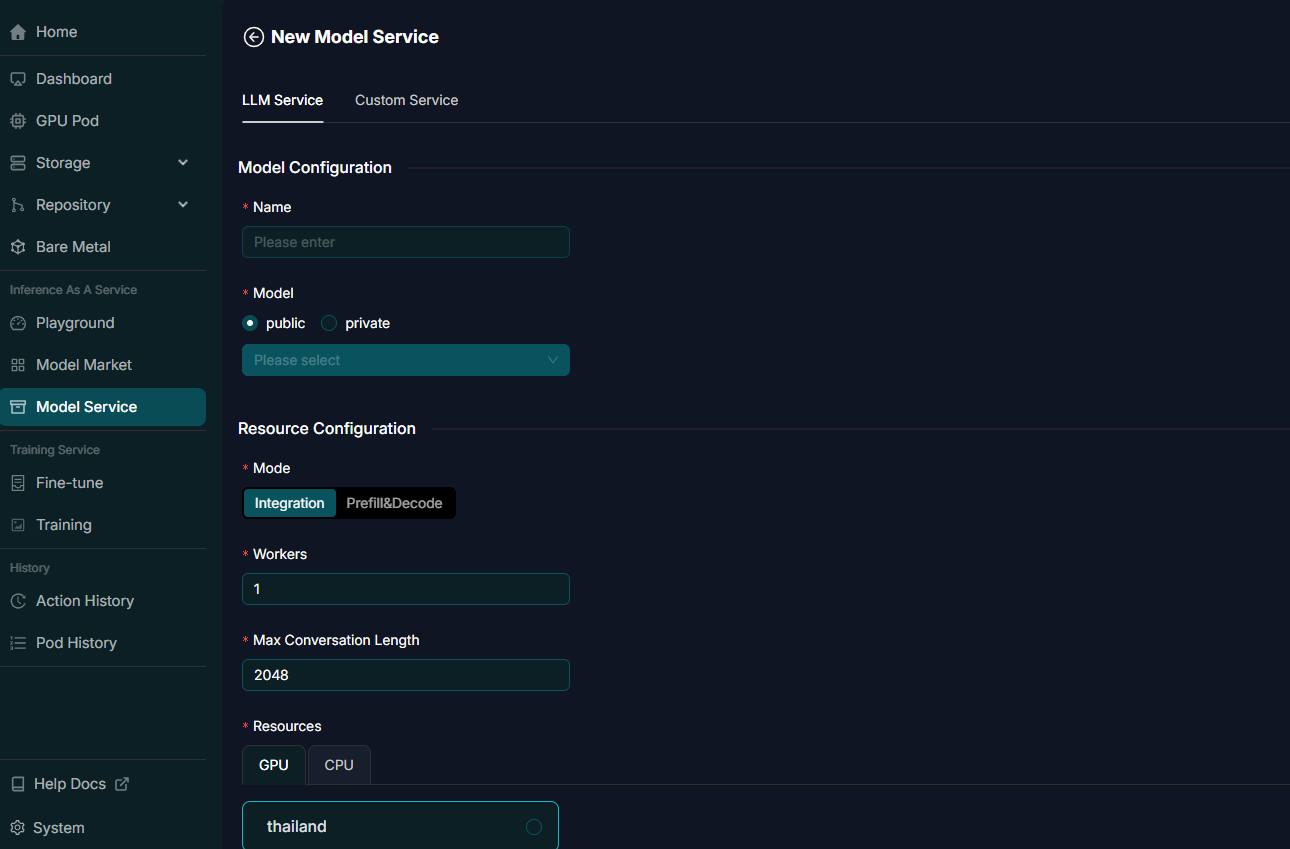
| 2. Create a service | Click New Model Service to start deployment. Service types include LLM Service and Custom Service. |
| 3. Configure service parameters | Enter Name, choose the Model category (public / private) and a specific model, and set Mode (Integration or Prefill & Decode), Workers, and Max Conversation Length. |
| 4. Select resources | Choose the CPU type and count, memory, and GPU type and count. Balance performance and cost against estimated charges and resource requirements. |
| 5. Confirm deployment | Review all settings and click Confirm to deploy. |
Tip
Set Workers according to expected load and performance requirements.
Manage Model Services
- View services: Review all deployed services in the list, including status, resource usage, and creation time.
- Update services: Click Detail to open service settings and make the necessary changes.
- Delete services: Click Delete for the corresponding service.
Warning
Deletion is permanent and cannot be undone. Delete a service only after confirming that it is no longer needed.
Serverless Endpoints
This section explains how to call platform-hosted LLM endpoints in different programming languages.
Prerequisites and Authentication
Before calling a hosted LLM, authenticate with an API Key. Create an API Token at Cloud Portal → Settings → API Token. If you do not have an account, register first.
Get Endpoint Information
Open Cloud Portal → Inference As A Service → Playground to view supported models and their endpoints. Select a model and click the API tab to see its endpoint information. Example endpoint URL:
Tip
Use the language selector on the right side of Playground's API tab to view examples in languages other than cURL.
API Compatibility
The platform's backend APIs are compatible with OpenAI APIs. You can use the OpenAI SDK directly by setting base_url to the platform endpoint.
Request Parameters
| Field | Description |
|---|---|
| messages | An array of message objects. Each message includes role (system / user / assistant) and content. The role identifies the source of the message. |
| model | The LLM identifier, such as "meta-llama-3-8b-instruct". |
| stream | A boolean. When true, the response is streamed in chunks. When false, the complete response is returned at once. |
| maxTokens | The maximum number of tokens generated in the response. |
| temperature | A value from 0 to 1 that controls output randomness. |
| topP | Controls output diversity. Lower values make the output more deterministic. |
Request Examples
cURL example:
curl --location 'https://cloud.highrise.ai/api/v1/ai/chat/completions' \
--header 'Content-Type: application/json' \
--header 'Authorization: Bearer ${TOKEN}' \
--data '{
"messages": [
{ "role": "system", "content": "" },
{ "role": "user", "content": "hi" }
],
"model": "meta-llama-3-8b-instruct",
"stream": false,
"maxTokens": 1024,
"temperature": 0.5,
"topP": 0.02
}'
Python (OpenAI SDK) example:
import requests
import os
import openai

API_KEY = os.getenv("HIGHRISE_API_KEY")

client = openai.OpenAI(
    base_url="https://cloud.highrise.ai/api/v1/ai",
    api_key=API_KEY
)

completion = client.chat.completions.create(
    model="meta-llama-3-8b-instruct",
    messages=[
    {"role": "user", "content": "say hello"},
    ],
    max_tokens=128,
    stream=True,
)

for chunk in completion:
    if not chunk.choices:
        continue
    content = chunk.choices[0].delta.content
    if content:
        print(content, end="")
Node.js example:
import OpenAI from 'openai';

const openai = new OpenAI({
  apiKey: process.env.HIGHRISE_API_KEY,
  baseURL: 'https://cloud.highrise.ai/api/v1/ai',
  dangerouslyAllowBrowser: true,
});

async function main() {
  const completion = await openai.chat.completions.create({
    messages: [{ role: 'user', content: 'say hello' }],
    model: 'meta-llama-3-8b-instruct',
  });
  console.log(completion.choices);
}

main();
Handle Responses
Responses typically contain generated text and metadata such as token usage. When using the OpenAI SDK, you can usually access the returned objects directly without processing every detail in the response JSON. The response structure depends on the value of stream.
When stream is false, an example response and its field descriptions are:
{
  "code": 200,
  "msg": "Operation successful",
  "data": {
    "id": "chat-4efd9b46dc6643039b77f0cba5fd1643",
    "object": "chat.completion",
    "created": 1731468962,
    "model": "meta-llama-3-8b-instruct",
    "choices": [
      {
        "index": 0,
        "message": {
          "role": "assistant",
          "content": "Hi! It's nice to meet you. ...",
          "tool_calls": []
        },
        "logprobs": null,
        "finish_reason": "stop",
        "stop_reason": null
      }
    ],
    "usage": {
      "prompt_tokens": 16,
      "total_tokens": 41,
      "completion_tokens": 25
    },
    "prompt_logprobs": null
  }
}
- code: The HTTP status code. 200 indicates success.
- msg: A message describing the operation result.
- data.id / object / created / model: The unique request identifier, response object type, generation timestamp, and model used.
- choices: An array of generated response options.
messagecontains the assistant's output, andfinish_reasonexplains why generation stopped. - usage: Token usage information for monitoring API costs.
When stream is true, the response is returned as multiple server-sent events (SSE), each carrying part of the generated text. For example:
event:messages
data:{"id":"chat-408025dcca3e4c3296b0d069081a26a1","object":"chat.completion.chunk",
"created":1731469002,"model":"meta-llama-3-8b-instruct","choices":[{"index":0,
"delta":{"role":"assistant","content":""},"logprobs":null,"finish_reason":null}],
"usage":{"prompt_tokens":16,"total_tokens":16,"completion_tokens":0}}
Tip
Monitor API token consumption through the usage field to optimize costs.
Troubleshooting
| Issue | Solution |
|---|---|
| Authentication error | Check that the API Key is correct and valid. |
| Request timeout | Check network connectivity and retry. |
| Unexpected response format | Check that the model name and request payload are correct. |