Bare Metal
Overview
Bare Metal provides dedicated physical server provisioning, allocation, and management for workloads that require high hardware performance and stability, such as high-performance computing and large-model training. Users can take advantage of physical server compute capacity and performance while retaining control and flexibility over configuration and operations.
Create a Bare Metal Service
Step 1: Open Bare Metal
Click Bare Metal in the left navigation.
Step 2: Create an Instance
Click Create on the Bare Metal page to begin creating an instance.
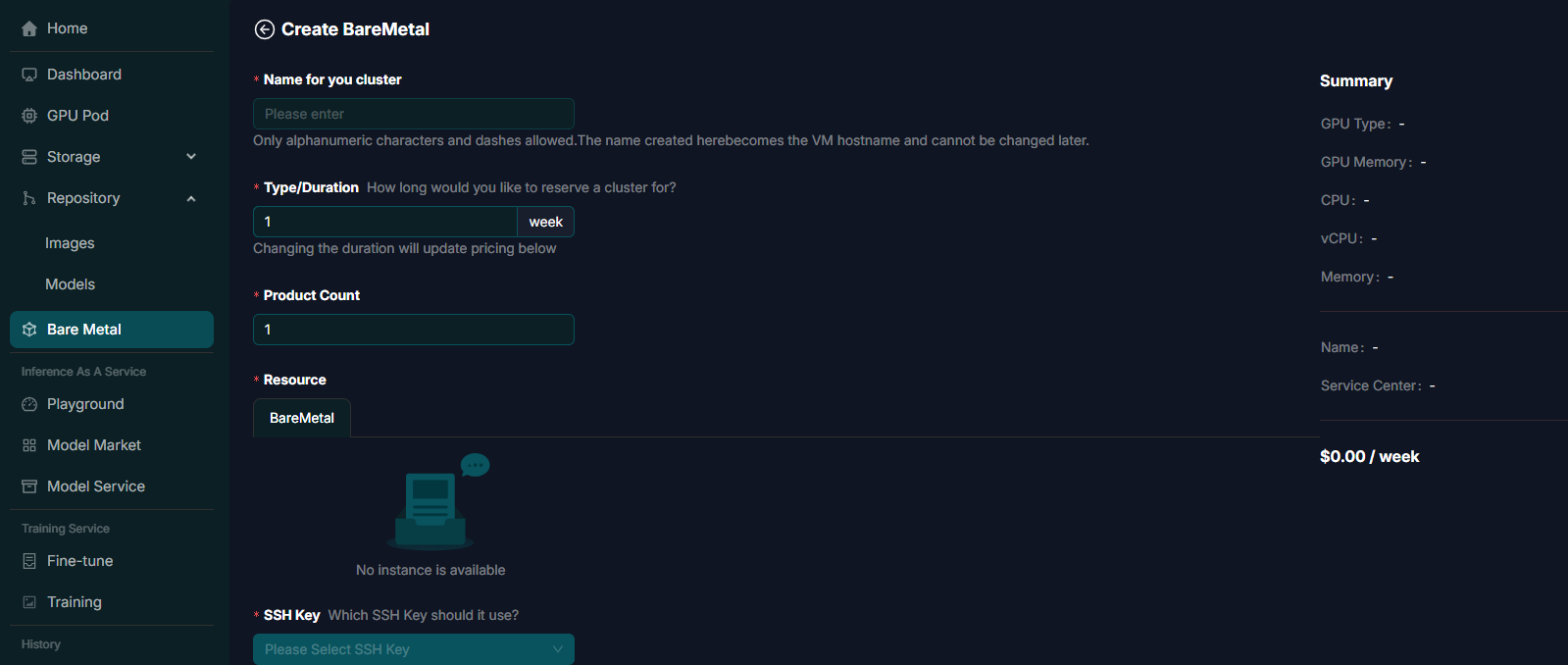
Step 3: Configure Instance Details
Complete the required configuration fields:
| Setting | Description |
|---|---|
| Region | The server's geographic region. |
| Type / Duration | The server type and rental duration, such as weekly. Changing the duration updates the estimated price. |
| Filesystem | The file system used by the server. |
| Cluster Name | A server cluster name containing only letters, digits, and hyphens. It becomes the virtual machine hostname and cannot be changed after creation. |
| Product Count | The number of Bare Metal instances requested. |
| SSH Key | The SSH key used for secure access. |
The Summary panel on the right updates in real time with GPU type, GPU memory, CPU, vCPU, memory, name, and service center information. It also shows the estimated weekly cost so you can review configuration and charges before submitting.
Manage Bare Metal Services
- Step 4: View the instance list. Review instance status and monthly costs.
- Step 5: Manage instance status. Click Detail for more information and to activate, deactivate, or delete an instance.
- Step 6: View instance details. Open the details page to review configuration, performance metrics, and other information.
Note
Complete the Bare Metal service configuration before proceeding to storage management.
Next Steps
After deploying a Bare Metal service, see Storage for instructions on managing storage resources, preparing data, and configuring mounts.